
Replace speaker names in Castos transcripts
Transcripts generated by Castos automatically provide speaker diarization for episodes that include multiple people. The labels Speaker A, Speaker B, Speaker C, (and so on) are used to denote each speaker. You can update these labels to personalize the transcript and let your followers know who's talking.
Steps to replace speaker names
- After the transcript has been generated, click Edit of the desired episode to go back in to the episode editor
-
Find the Episode's Transcript section and click Rename Speakers
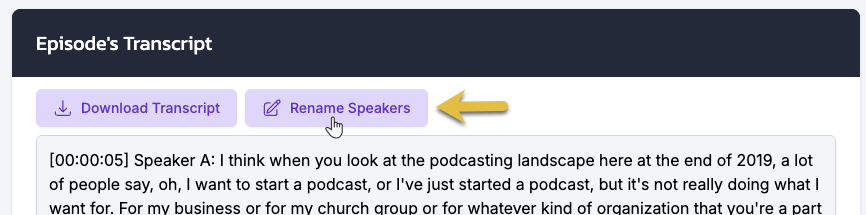
Click Replace Speakers - In the modal
- Type the name to replace each speaker detected in the transcript and click Replace Names
-
Select the name of a Host from the dropdown if they've been added as a Host to that podcast and click Replace Names
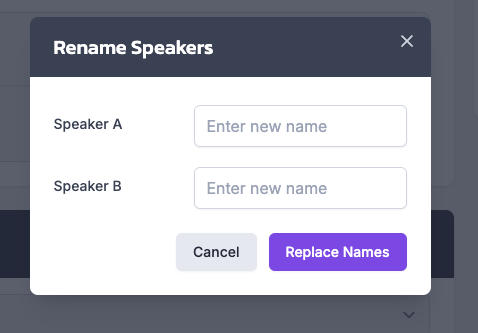
Enter new speaker name
- The labels of Speaker A, Speaker B, and so on should now reflect the name you entered. Click Update to save your changes.
Things to know
- Sometimes the service detects multiple speakers for the same speaker. If this happens just rename both speakers with the same name.
- The Rename Speakers button will not show in the episode editor if the transcript doesn't include multiple speakers.
- If you bring your own transcript, the Rename Speakers button may not show unless your diarization format is
[00:00:05] Speaker A: Transcript text here.