Delivering episode transcripts to Apple Podcasts and other Apps
Castos can include your episode transcripts in your RSS feed, so Apple Podcasts and other podcast apps that support transcripts can show them to your listeners.
This uses the Podcast 2.0 transcript standard. Transcripts are delivered as WebVTT (.vtt ) files, a caption format that lines each piece of text up with the moment it's spoken in your audio.
You can get a transcript into your feed in two ways:
Castos AI transcripts are delivered automatically. There's nothing extra to do.
Your own transcript file: upload a .vtt file to an episode.
Which transcripts are delivered to apps
Transcript on your episode
Delivered to podcast apps?
Generated by Castos AI transcription
Yes, automatically
A .vtt file you uploaded
Yes
Text you typed or pasted into the transcript box
No
Text imported from another tool, such as Riverside
No
Podcast apps need timing information to line a transcript up with your audio. Typed, pasted and imported text doesn't include it. If your episode has one of those, upload a .vtt version of the transcript to deliver it to apps. The text stays on your episode either way.
Option 1: Castos AI transcripts
When Castos generates an AI transcript for an episode, it's added to your RSS feed automatically as a .vtt file. You don't need to do anything else.
The file apps receive is built from the transcript text on your episode, so:
Edits you make in the transcript box are included once you save the episode.
Names you change with Rename Speakers show up as the speaker names in apps that display them.
Keep the timestamps when editing
Each paragraph of an AI transcript starts with a timestamp, like [00:01:15] . We use these to time each line, so when you edit your transcript:
Don't delete or reformat the timestamps. If there's no timestamp near the start of the transcript, it can't be delivered to apps.
Text you add above the first timestamp isn't included in the file apps receive.
A new paragraph without its own timestamp is joined to the paragraph above it.
For more about AI transcripts, including monthly limits and settings, see our Transcription FAQ.
Option 2: Upload your own transcript file
Upload your own file if you already have a transcript from an editing or transcription tool, or if your episode's transcript was typed, pasted or imported.
File requirements
Your file must:
Be a WebVTT file ending in .vtt . Other formats, like .srt , .txt or .docx , aren't accepted.
Be 2 MB or smaller.
Start with WEBVTT on the first line and contain at least one timed caption.
Here's what a simple .vtt file looks like. The <v Host> speaker labels are optional.
WEBVTT

00:00:00.000 --> 00:00:04.500
<v Host>Welcome back to the show.

00:00:04.500 --> 00:00:09.000
<v Guest>Thanks for having me.
Many transcription and editing tools can export captions as .vtt . If yours only exports .srt , use a caption converter to turn it into a .vtt file first.
Upload the file
Open the episode you want to add a transcript to.
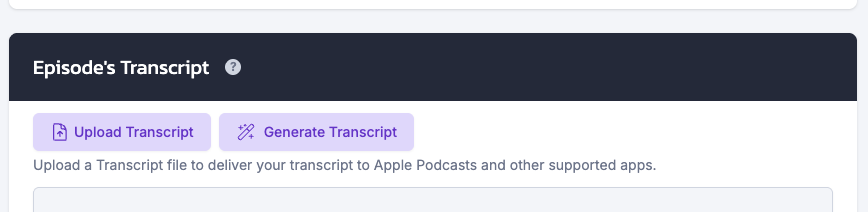
In the Episode's transcript section, click Upload Transcript.
Choose your .vtt file.
Save the episode with Publish, Update, Schedule or Save Draft. The file isn't added until you save.
Click Upload Transcript
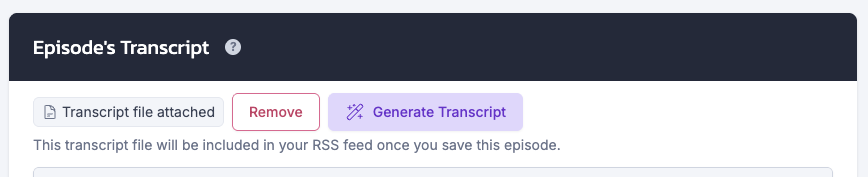
Once it's saved, you'll see Transcript file attached in the transcript section. The transcript is added to your RSS feed as soon as the episode is published.
Transcript file attached
If the transcript box was empty, we fill it with the text from your file, grouped into paragraphs with speaker names. You can then read it on the page or download it with Download PDF. If the box already has text, we leave that text as it is. The text in the transcript box is used on the Castos podcast websites if you're using it for your show.
Editing the transcript box doesn't change the file apps receive. Apps get your file exactly as you uploaded it. To correct something, edit your .vtt file and replace it (see below).
If you don't see the Upload Transcript button
An AI transcript is being generated. Wait for it to finish.
The episode already has a Castos AI transcript. That transcript is already delivered to apps, so you don't need to upload one.
An AI transcript failed. Click Add transcript manually, and the Upload Transcript button will appear.
It's a new episode or draft, and AI transcripts are turned on for your podcast. Castos will generate the transcript when you save the episode with a media file. If you'd rather upload your own files for new episodes, turn off AI transcripts for your podcast first. Click Manage in the transcript section to find the setting.
Replace or remove an uploaded file
To remove a file: click Remove next to Transcript file attached, then confirm. This happens right away, so you don't need to save the episode. The transcript file is removed from your RSS feed, but its text stays in the episode's transcript box for your Castos podcast website (if you're using it).
To replace a file: remove the current file, click Upload Transcript to choose the new one, then save the episode.
Replacing the file doesn't change the transcript text already on your episode. If you want the text to match your new file, save the episode with the new file first. Then update the text in the transcript box and save again.
Private and hybrid podcasts
Transcripts have the same access rules as your episodes:
Private podcasts: each subscriber's private feed includes a transcript link that only works with that subscriber's access. If you revoke a subscriber, they lose access to transcripts too.
Hybrid podcasts: transcripts for public episodes appear in your public feed. Transcripts for subscriber-only episodes appear only in private feeds.
Transcript language
We label each transcript with your podcast's language so apps know what language it's in. Make sure the Language field in your podcast's Feed Details settings is set.
When transcripts appear in apps
Only published episodes are in your RSS feed, so a transcript on a draft or scheduled episode is added when that episode goes live.
Podcast apps pick up new and updated transcripts the next time they refresh your feed. How often that happens depends on the app.
Each app decides whether and how to show transcripts. Some apps don't support them yet.
Troubleshooting
"The transcript file must be a valid WebVTT file starting with "WEBVTT" and containing at least one caption."
Open the file in a text editor and check that the first line is WEBVTT and that the file contains timed captions (lines like 00:00:01.000 --> 00:00:04.000 followed by text). If you renamed an .srt or .txt file to .vtt , convert it properly instead.
"The transcript file could not be read. Please try uploading it again."
Something went wrong during the upload. Try again, and contact support if it keeps happening.
My file is too large.
Transcript files can be up to 2 MB. If yours is larger, try exporting it again with longer captions, such as a sentence per caption instead of a single word.
My AI transcript isn't showing in apps.
Check that the episode is published, and that the transcript still has timestamps like [00:01:15] at the start of its paragraphs. Then give apps time to refresh your feed.
I pasted my transcript, but it isn't showing in apps.
Plain text doesn't include the timing apps need. Upload a .vtt version of the transcript instead.
Where did the Download Transcript button go?
It's now called Download PDF. It still downloads your transcript text as a PDF. To get a .vtt file, export it from the tool you made it with.
Did this answer your question?Thanks for the feedbackThere was a problem submitting your feedback. Please try again later.